
Help centerWhite labelYour own domain for card install pages
Your own domain for card install pages
When a guest taps your signup link or scans your QR code, they finish on an install page that adds the card to Apple or Google Wallet. That page can use your own address, like cards.yourbrand.com, instead of the default one. You set it up yourself on the White label page.
Before you start
- Pick an address you don't use for anything else. A new subdomain is best, like cards.yourbrand.com or loyalty.yourbrand.com.
- It must be different from your signup page's address. Each one points to a different place. See Your own domain for signup pages.
- You need access to your domain's DNS settings, wherever your domain is registered or hosted, or someone who has it.
Set it up
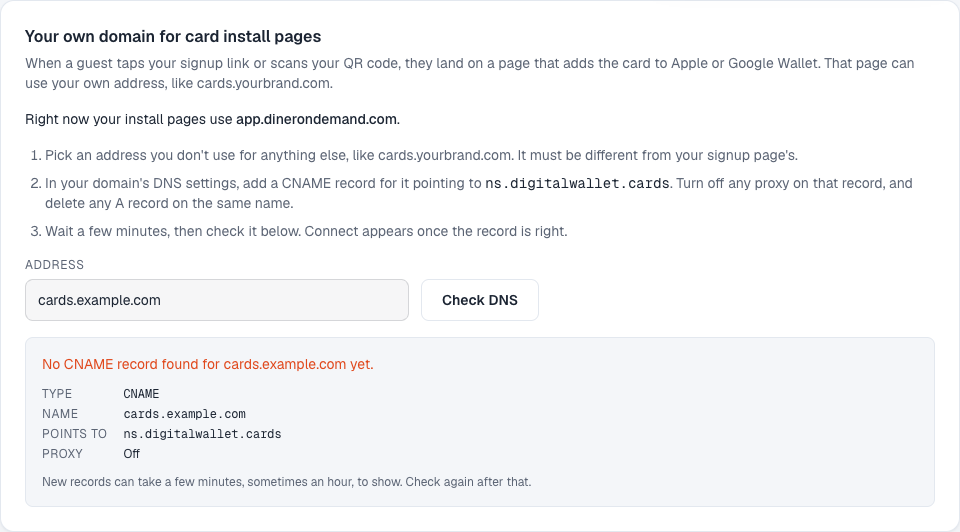
- In your domain's DNS settings, add this record:
| Type | Name | Points to |
|---|---|---|
| CNAME | your address, like cards.yourbrand.com | ns.digitalwallet.cards |
- Turn off any proxy on that record. On Cloudflare, that means the grey cloud, not the orange one. Delete any A record on the same name.
- Wait a few minutes. On the White label page, enter the address and click Check DNS.
- When the check shows a green tick, click Connect.
- The security certificate takes 15 minutes to 24 hours. The page shows the status and says Live when it's done.
What the status means
| Status | What to do |
|---|---|
| Waiting for the DNS record | The record isn't showing yet. Check it's saved, then give it up to an hour. |
| The DNS record points somewhere else | The CNAME points to the wrong place, or there's an A record on the same name. Fix the record. |
| DNS is right. Waiting for the security certificate | Nothing to do. It finishes on its own within 24 hours. |
| Live | Your install links and QR codes use your address. |
If you connected the wrong address and it isn't live yet, click Remove and start again.
Multi-location brands
One address serves the whole brand. Set it from the brand account.
Still stuck? Email support@dinerondemand.com.