
Help centerScanner and cashier PINsScanning a card and logging a ticket
Scanning a card and logging a ticket
With a shift started, the scanner shows the camera. Everything happens on two screens.
Find the card
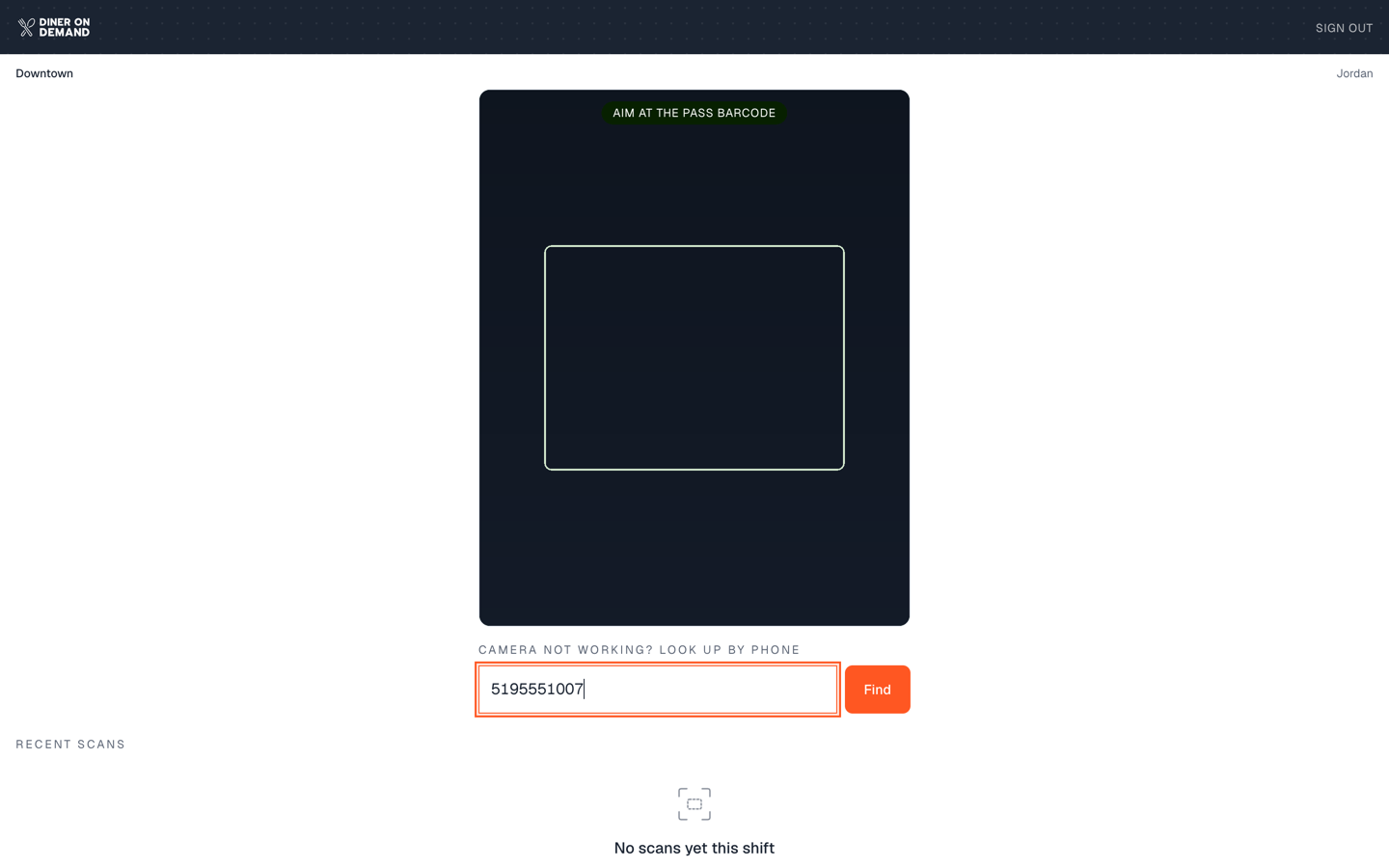
- Scan. Hold the guest's phone up to the camera. The barcode on their wallet pass is read in a second.
- No card handy? Type the guest's phone number in the box under the camera and tap the arrow. If they have more than one card, pick the right one.
The card screen
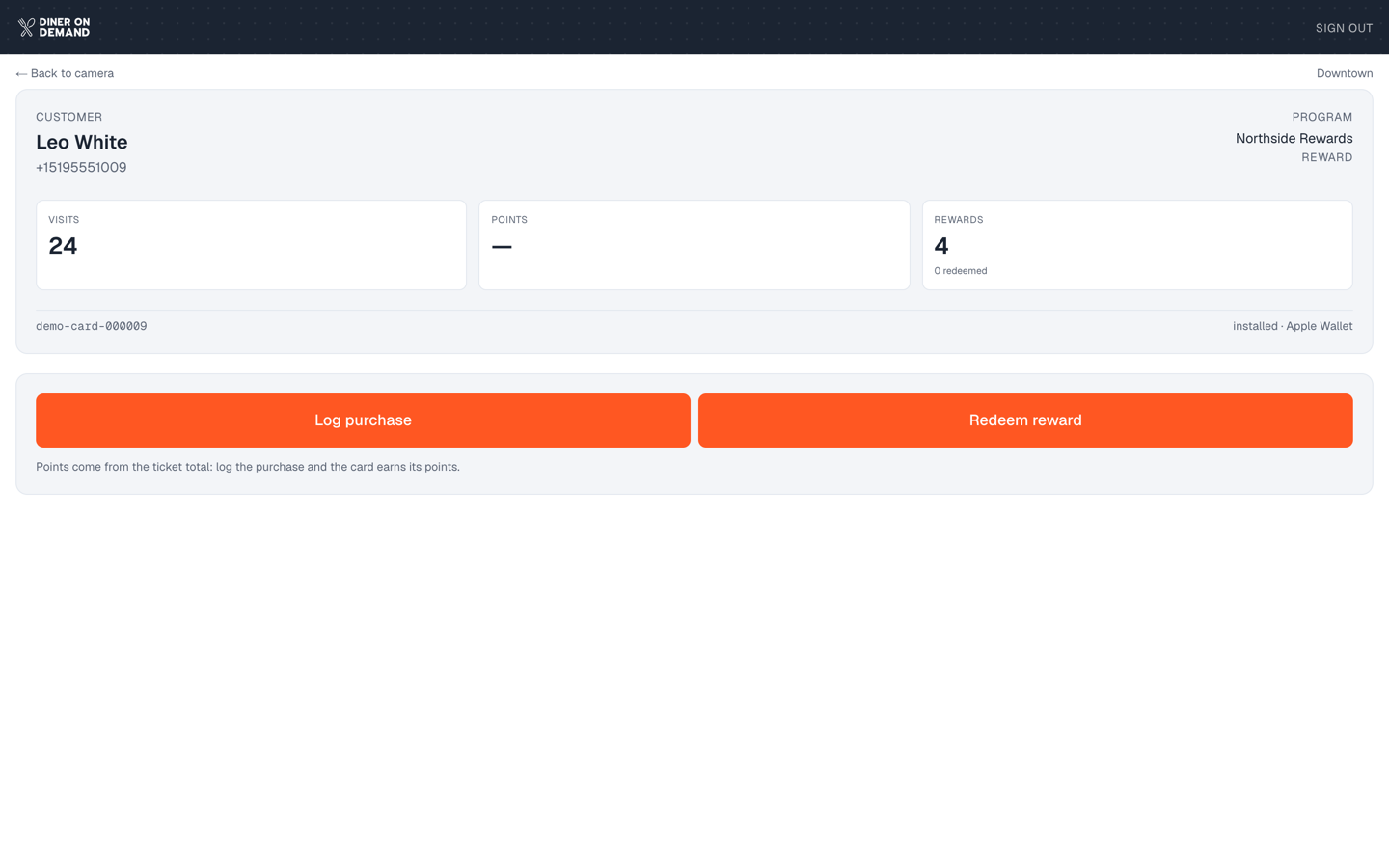
The card screen shows who the guest is, which program they're on, and their balance: stamps toward the next reward, points, or an unused coupon.
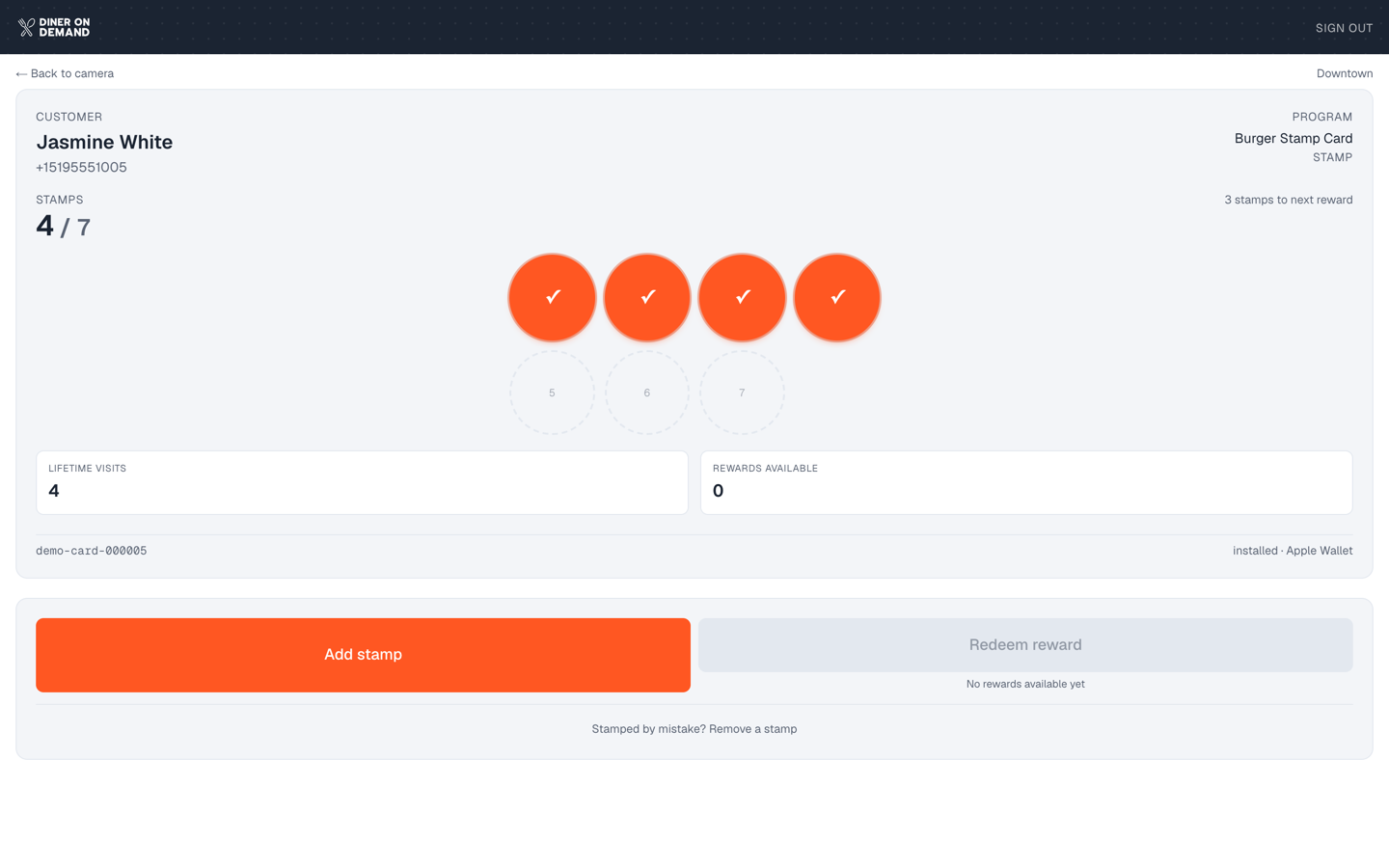
Stamp cards
- Enter the ticket amount.
- Tap Add stamp. When the card fills, the reward becomes available.
- When the guest wants their reward, tap Redeem reward.
Points cards
- Enter the ticket amount.
- Tap Log purchase. Points are added at the card's rate, for example 10 per dollar.
- When they have enough for a reward, tap Redeem reward and choose which one.
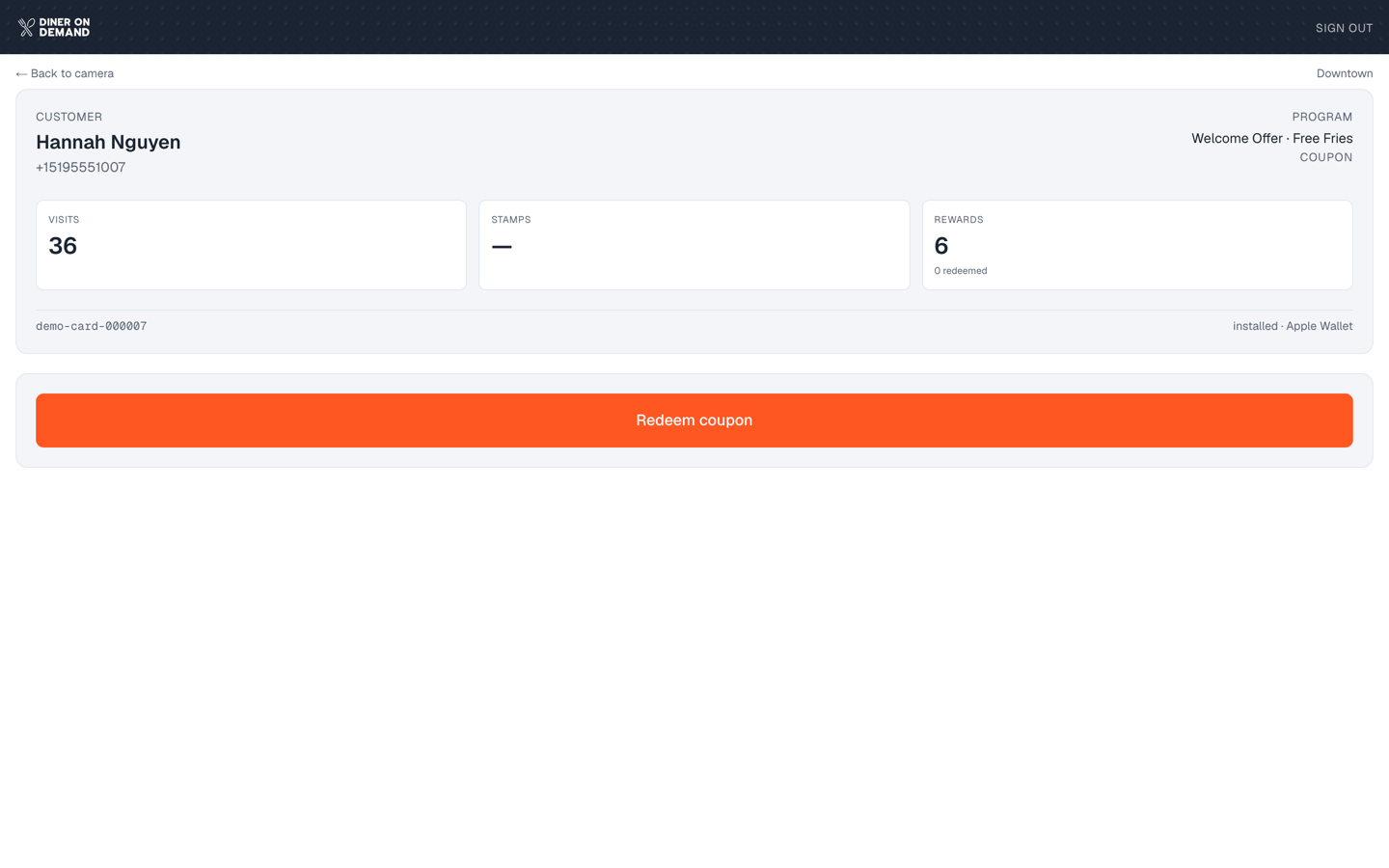
Coupons
Tap Redeem coupon. If the coupon is linked to a stamp or points card, the guest's pass converts to that card straight away. See Linking a coupon to a loyalty card.
Repeat scans
If the same card is scanned again within a few minutes, the scanner asks whether it's a genuine second visit before adding anything. This stops a double tap from becoming a double stamp.
Recent scans
Back on the camera screen, Recent scans lists the last few for this shift, so a cashier can check that a visit was logged.
Still stuck? Email support@dinerondemand.com.