
Help centerIntegrationsConnecting Meta ads
Connecting Meta ads
Connect the Meta account that runs your ads and two things happen: signups from your lead-ad forms get a card automatically, and your Overview shows ad spend next to the members it brought in.
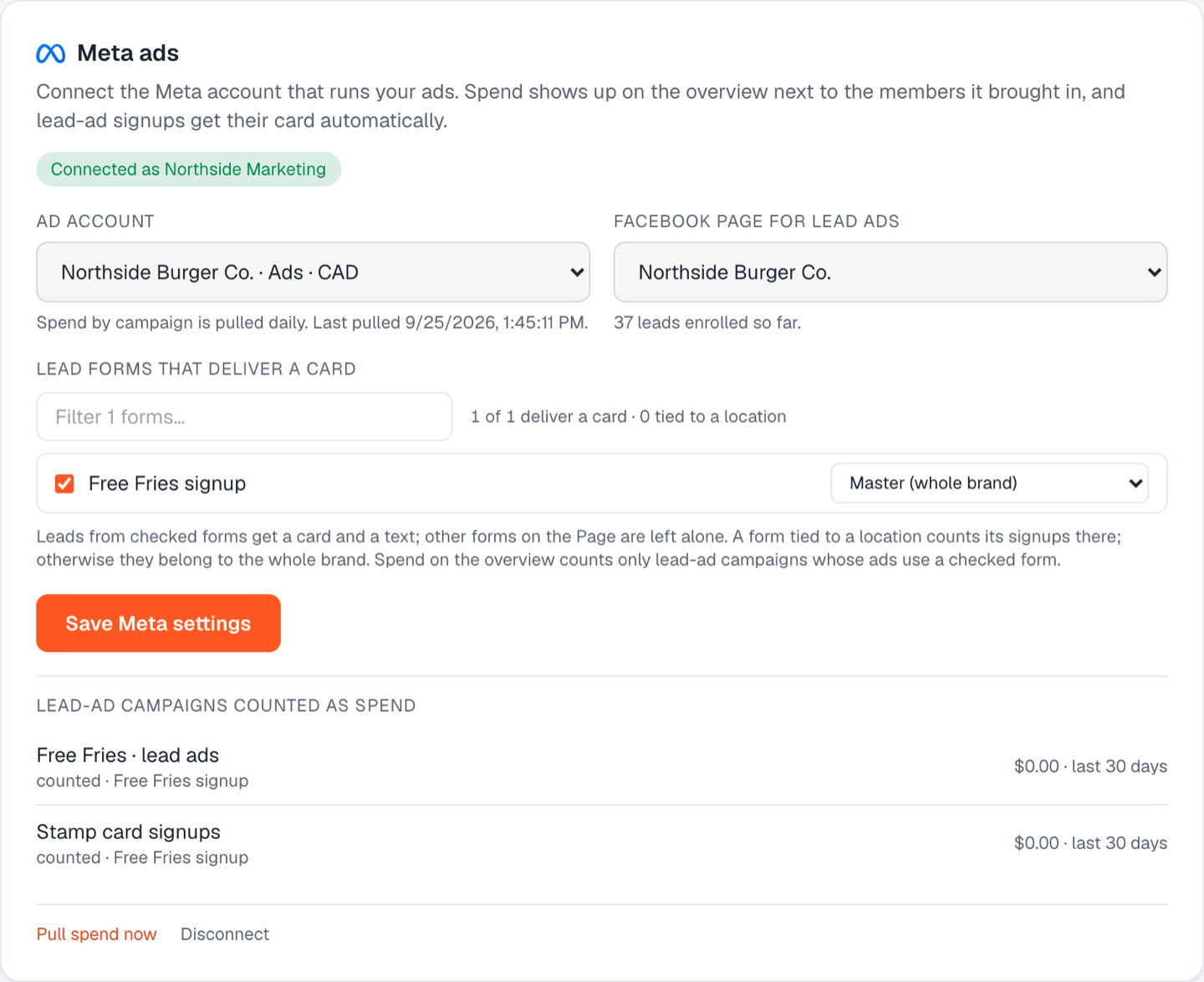
Connect
- Go to Integrations and click Connect Meta.
- Sign in to Facebook and approve the permissions. You're connecting your own account; Diner On Demand only reads what you allow.
- Back on Integrations, pick the ad account and the Facebook Page that runs your lead ads.
- Click Save Meta settings.
Choose the lead forms that deliver a card
Once a Page is chosen, its lead forms are listed. Tick each form whose leads should get a card. Leads from unticked forms are left alone.
For a multi-location brand, each ticked form can be tied to a location, so those signups count for that store. Leave it on "Master (whole brand)" if the form isn't location-specific. See Lead forms mapped to locations.
Which campaigns count as spend
Spend on your Overview and in reports counts only lead-ad campaigns whose ads use a ticked form. Awareness, traffic and engagement campaigns are never counted, so your cost per new member reflects the campaigns that actually make members. The list under the form picker shows each campaign and whether it's counted.
Pull spend now fetches the latest figures; otherwise spend is pulled daily.
Disconnecting
Disconnect stops reading anything new. Spend already pulled stays in your reports.
Still stuck? Email support@dinerondemand.com.