
Help centerScanner and cashier PINsCreating cashier PINs
Creating cashier PINs
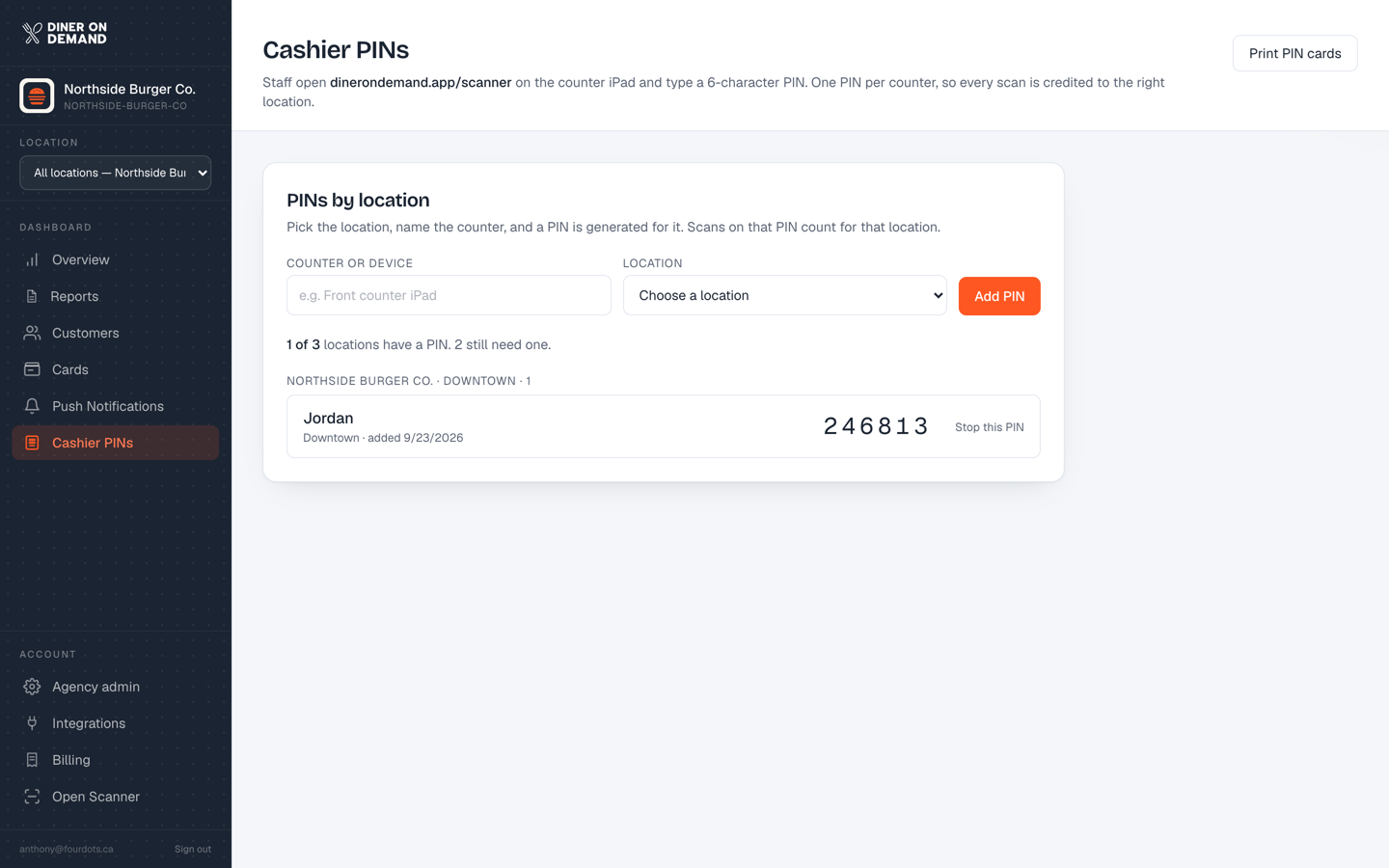
A cashier PIN is a six-character code that signs a counter into the scanner. Create one per counter or device, not per person, so a lost PIN is a one-line fix.
Create a PIN
- Go to Cashier PINs.
- Enter a counter or device name, for example "Front counter" or "iPad 2".
- On a multi-location brand, pick the location the PIN belongs to. Every scan on that PIN is credited to that store.
- Click Add PIN. The PIN appears in the list, ready to use.
Print PIN cards
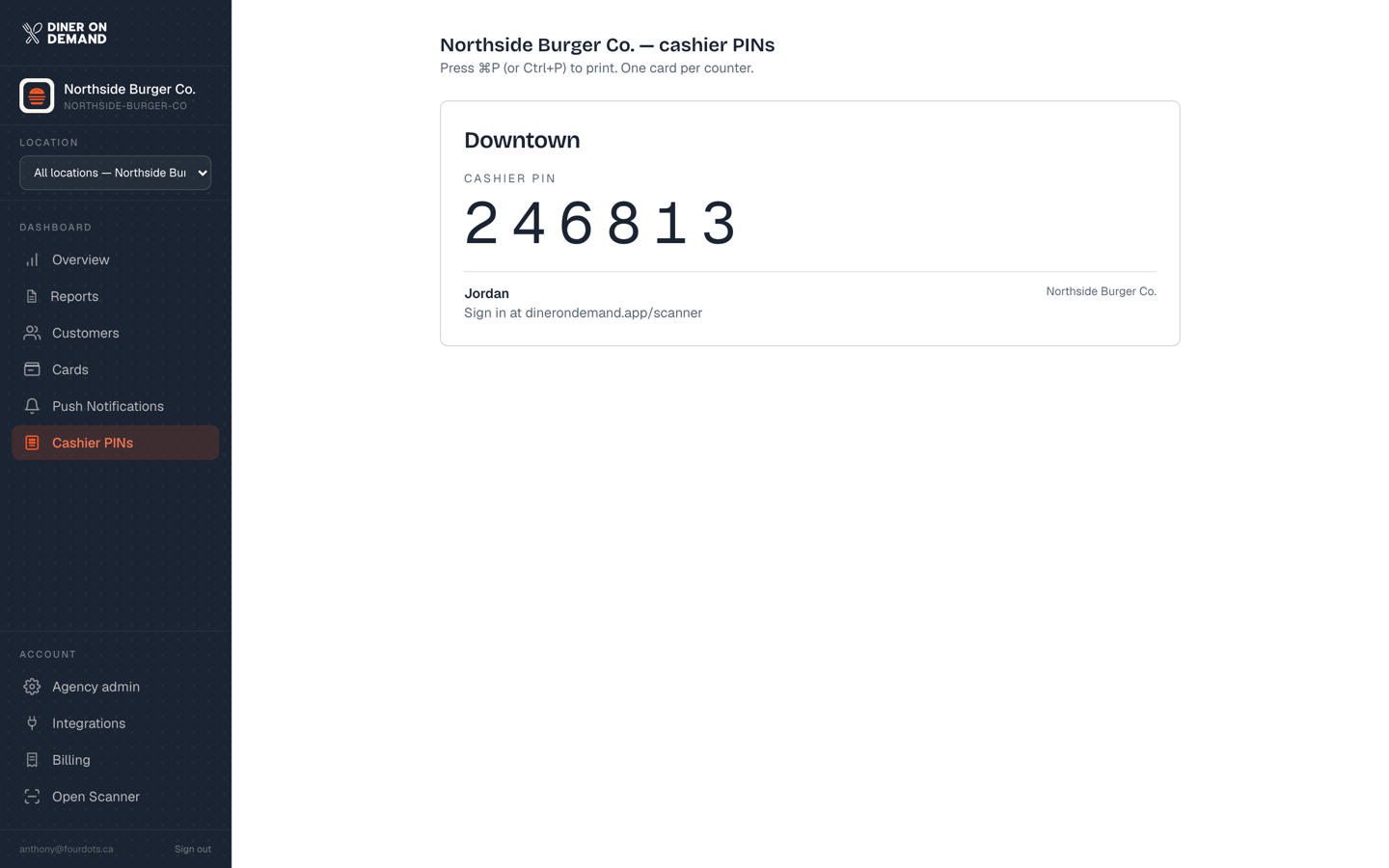
Click Print PIN cards to print a card for every PIN: the location name large, the PIN, the counter name and the scanner address. Tape one to each device.
Stop a PIN
Click Stop next to any PIN. Devices signed in with it are signed out at their next scan. Create a new one if you still need that counter.
Good habits
- One PIN per device. If a tablet is replaced, stop its PIN and make a new one.
- Name PINs by place, not by person. Staff change; counters don't.
- On a multi-location brand, the coverage line at the top ("12 of 14 locations have a PIN") tells you which stores still need one.
Still stuck? Email support@dinerondemand.com.