
Help centerScanner and cashier PINsStarting a shift
Starting a shift
Open dinerondemand.app/scanner on the counter device. From the dashboard, Open Scanner in the left-hand menu does the same in a new tab.
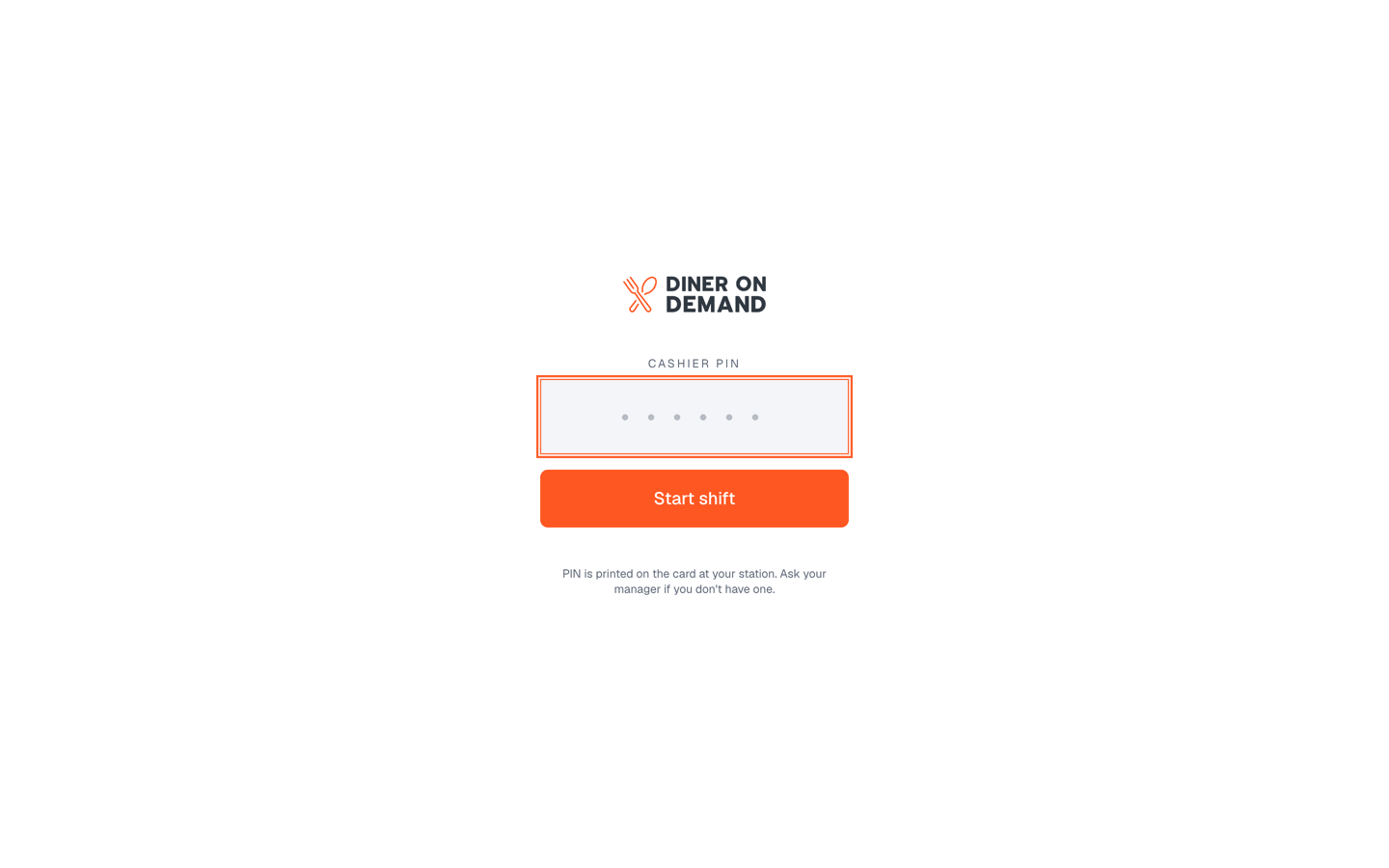
- Enter the six-character cashier PIN (letters and numbers) for this counter.
- Tap Start shift.
- The scanner opens with the camera on and the location name at the top. With white label on, your logo and colour fill the top bar.
The device stays signed in until someone taps Sign out, so the morning shift signs in once and everyone uses it for the day.
If the PIN doesn't work
- Check the PIN card taped to the device, or the Cashier PINs page in the dashboard.
- A stopped PIN won't sign in. Create a new one on the Cashier PINs page.
- The scanner needs camera permission the first time. If the camera view is black, allow camera access in the browser's site settings.
Still stuck? Email support@dinerondemand.com.