
Help centerPush notificationsSending a broadcast
Sending a broadcast
A push notification lands on the lock screen of every phone that holds your card, with no per-message cost. Push Notifications is your broadcast channel; texting is reserved for card delivery.
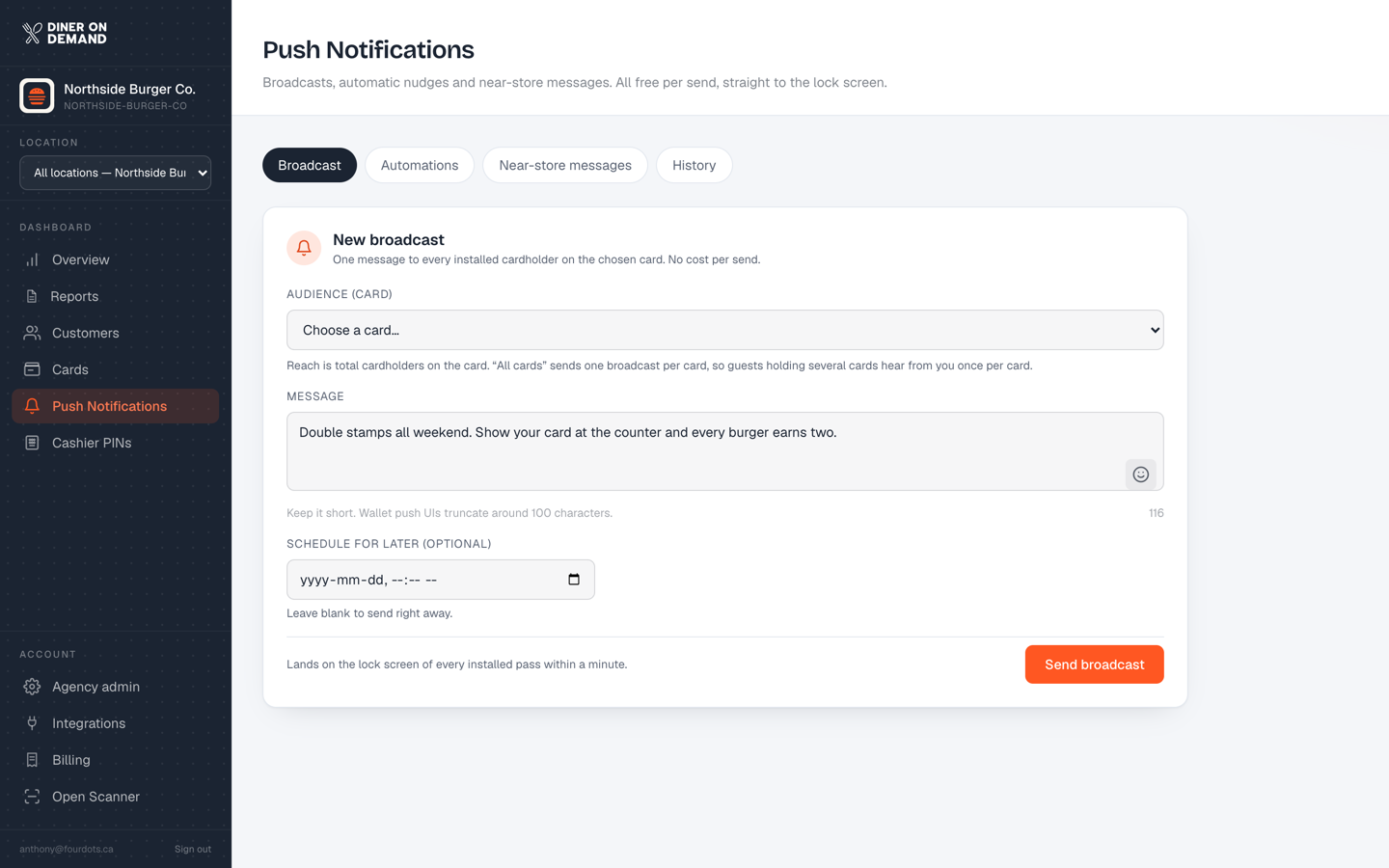
Send one
- Go to Push Notifications and stay on the Broadcast tab.
- Audience. Pick the card whose holders should get it, or everyone. The estimate under the picker tells you how many phones that reaches.
- Message. Short and specific. The first line is what shows on the lock screen. "Double stamps all weekend" beats "Exciting news".
- Schedule (optional). Leave it blank to send now, or pick a date and time in your local time.
- Click Send broadcast.
Writing messages that work
- Lead with the offer or the reason to come in.
- Give it a deadline. "This weekend" outperforms "soon".
- One idea per message. If you have two things to say, send two messages a week apart.
- Send when guests decide where to eat: late morning for lunch, late afternoon for dinner.
After sending
The History tab shows every broadcast with how many phones it reached. Watch Tracked revenue by day on the Overview for the bump. See Broadcast history.
Still stuck? Email support@dinerondemand.com.