
Help centerMulti-location settingsCashier PINs by location
Cashier PINs by location
Every scan is credited to the location that owns the PIN it was made on. That's how location revenue, visits and members stay accurate without staff choosing anything at the counter.
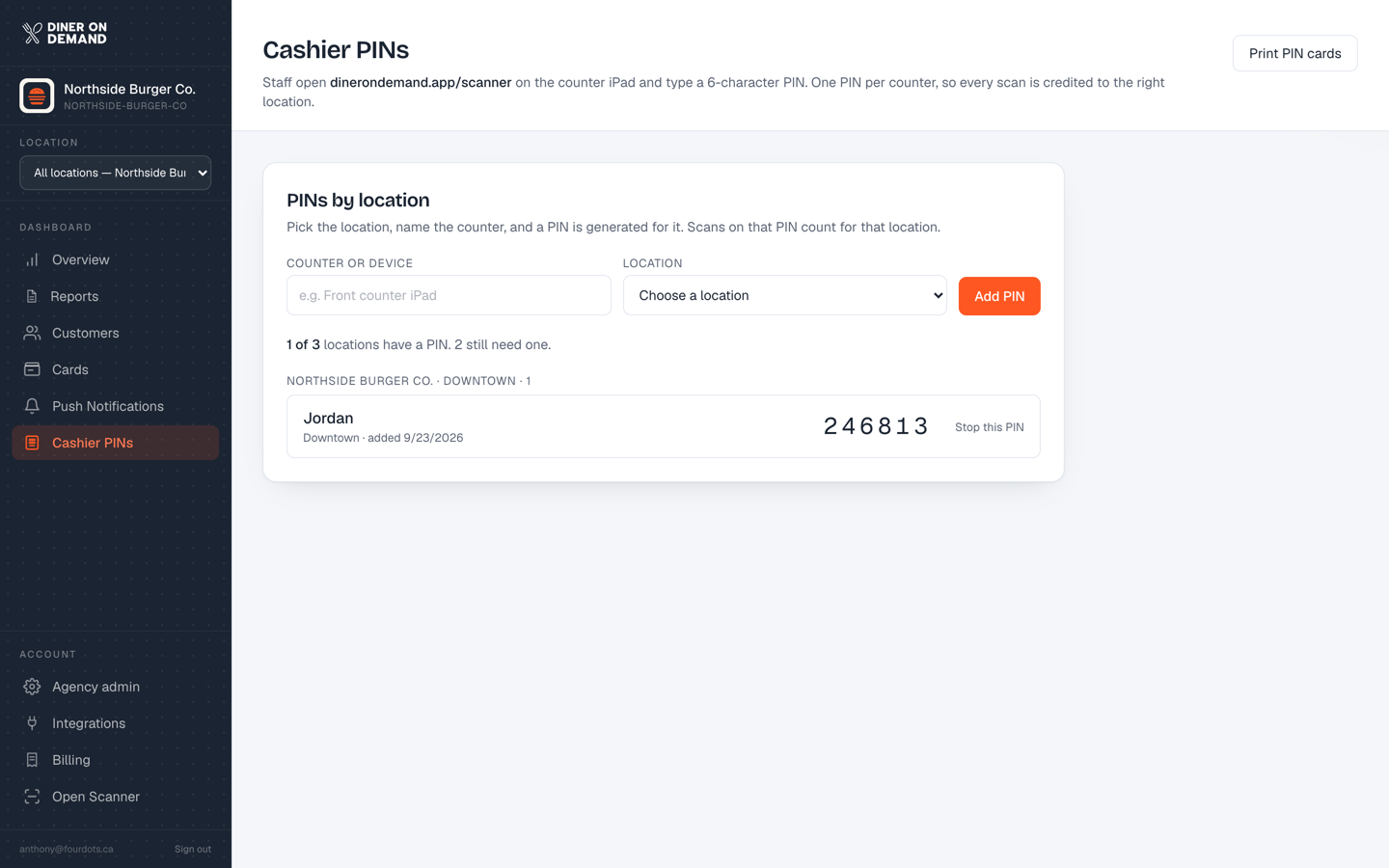
From the brand account
The Cashier PINs page has a Location dropdown. Pick the store, name the counter, click Add PIN. The PIN is created on that location, so its scans land there.
The coverage line at the top, "12 of 14 locations have a PIN. 2 still need one.", tells head office at a glance which stores aren't set up. The list below is grouped by location.
From a location login
A location manager sees only their own PINs and creates PINs for their store only.
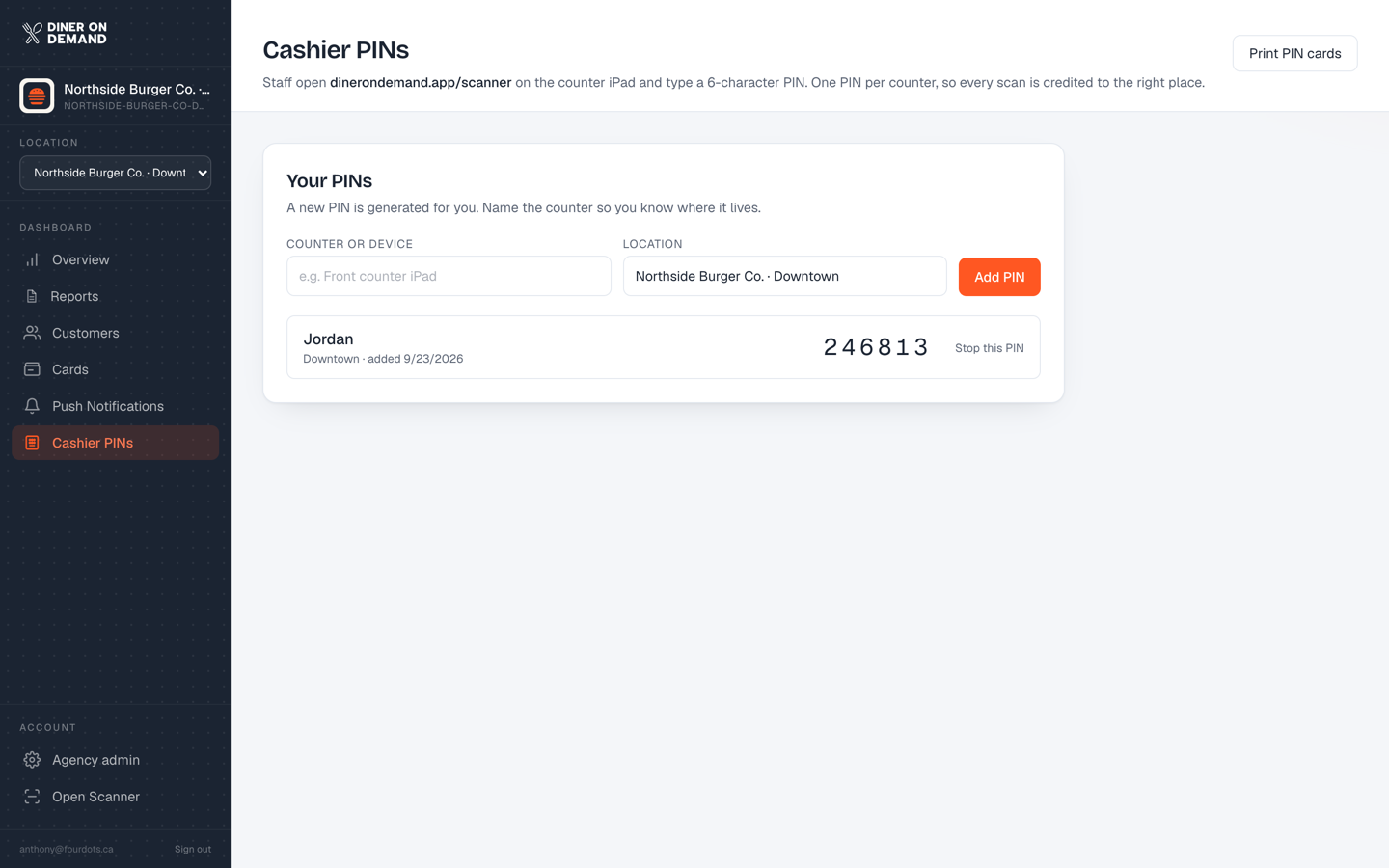
Printing
Print PIN cards from the brand account prints every location's cards, sorted by location, each card leading with the store name in large type. From a location login it prints that store's cards.
Moving a PIN
PINs don't move. If a device changes stores, stop its PIN and create a new one on the right location.
Still stuck? Email support@dinerondemand.com.