
Help centerCardsSharing your card
Sharing your card
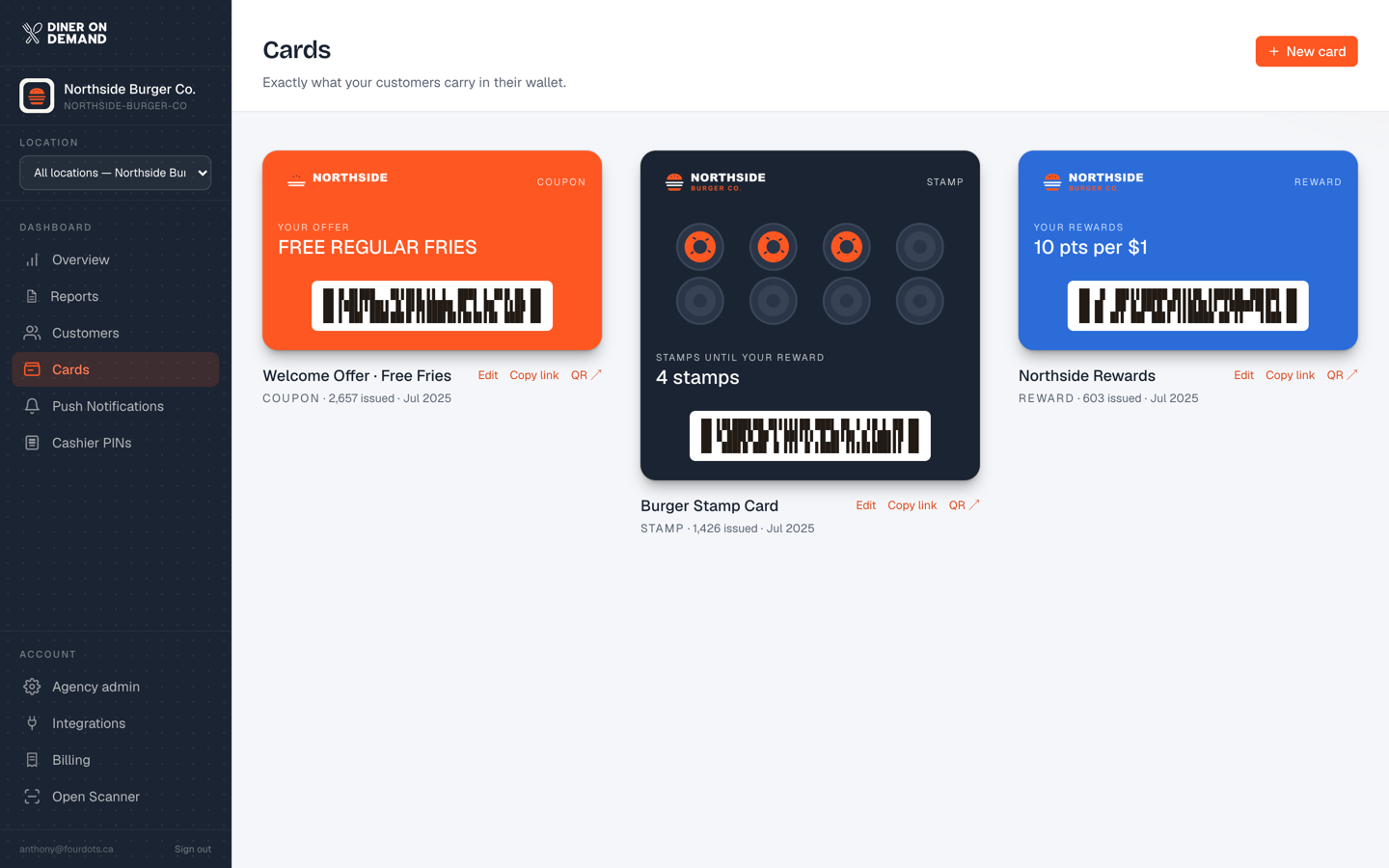
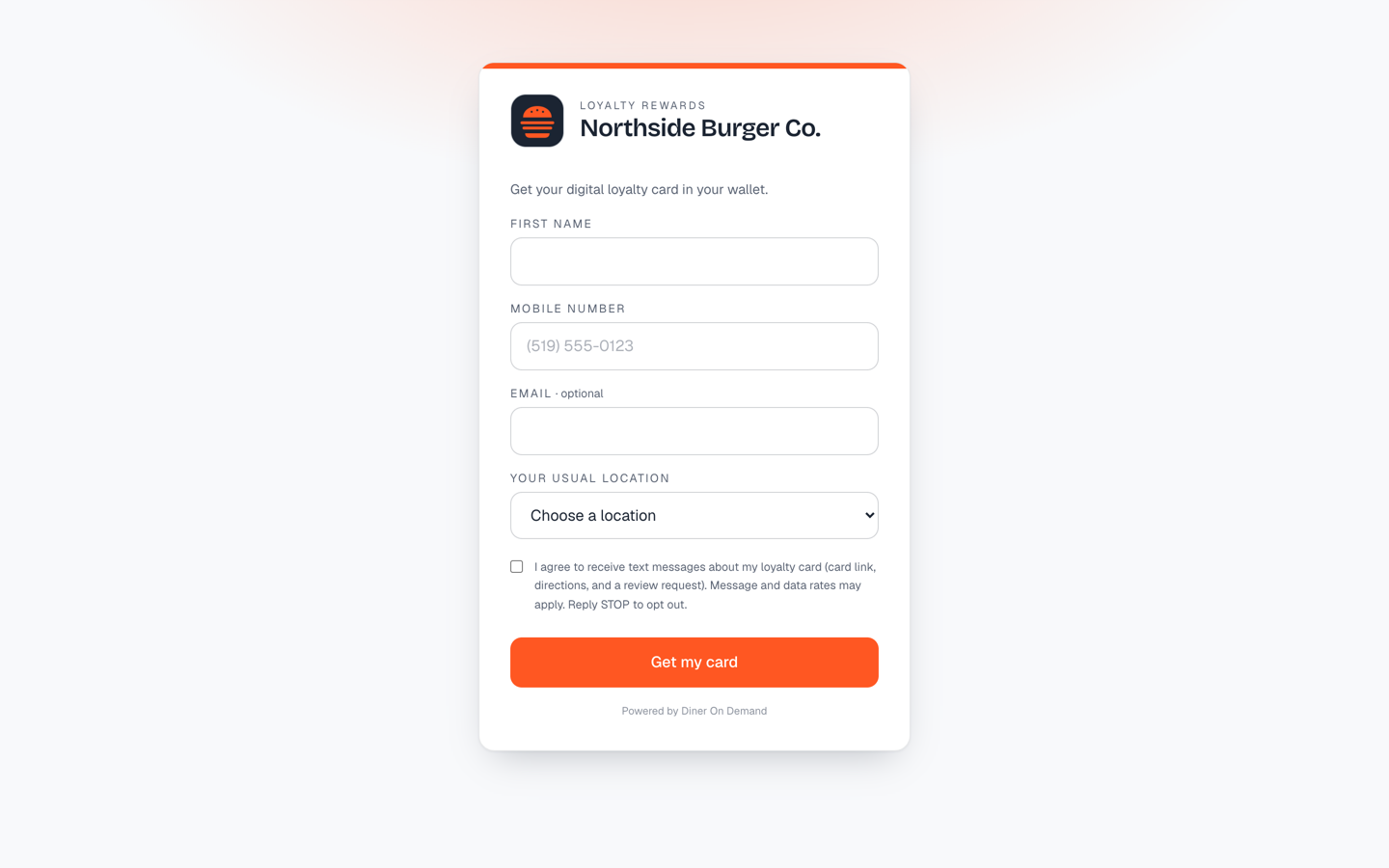
Every card has a signup link and a QR code, on the card in the gallery. Both open your Diner On Demand signup page with that card pre-selected, so every guest who follows one gets the same experience: your branding, the fields the card asks for, and the card in their wallet.
Ways to share
- QR code at the counter or on the table. The most common route. Click QR code under the card to download a print-ready PNG. A guest scans, fills in the form, and adds the card to their wallet in about ten seconds.
- Signup link in an Instagram bio, a Google Business Profile post, an email footer or a receipt. Copy link puts it on your clipboard.
- Your signup page without a card pre-selected lives at dinerondemand.app/join/your-business and gives out the card set as your default. On a multi-location brand, each location has its own page and its own links, so signups are credited to the store. See Signup pages by location.
- Meta lead ads. Connect Meta and every lead form you choose delivers a card automatically. See Connecting Meta ads.
- Your CRM or automation tool. Send signups from HighLevel, Zapier or your own system and they get a card. See Receiving signups from your tools.
Using your own address
Your signup page and the install page that adds the card to the wallet can both use your own domain, like join.yourbrand.com and cards.yourbrand.com. Then every link and QR code carries your brand. See Your own domain for signup pages and Your own domain for card install pages.
What happens after a signup
- The card is created and shown on screen with an Add to wallet button.
- If texting is on, the guest also gets the card link by text, then directions when they install, and a review request after their first visit. See How card delivery texts work.
- The new member appears in Customers and counts toward New members on your Overview.
Signups through these links also reach your CRM and your ads: the member is sent to any tool you've connected under Integrations, and your Meta pixel and Google Analytics tag fire on the page.
Still stuck? Email support@dinerondemand.com.